Enhance Dialogue: 5 Hidden Apple TV 4K Audio Settings
Optimizing movie dialogue clarity on your Apple TV 4K significantly elevates the home theater experience by leveraging five specific, often-overlooked audio calibration settings within the device's system.
Are you tired of constantly adjusting the volume during movies, struggling to hear dialogue over explosive action sequences or booming soundtracks? The search for pristine audio clarity can often feel like a never-ending quest, especially when your home entertainment setup involves an Apple TV 4K. Many users overlook the powerful, yet subtle, audio calibration tools embedded within this device, which can dramatically transform your listening experience. This article delves into 5 hidden Apple TV 4K audio calibration settings that enhance movie dialogue clarity, helping you unlock a truly immersive and frustration-free cinematic journey right in your living room.
Understanding the Apple TV 4K Audio Landscape
Before diving into specific settings, it's crucial to grasp the fundamental audio capabilities and challenges associated with the Apple TV 4K. This device acts as a central hub for your entertainment, processing audio from various streaming services and routing it to your sound system. The quality of your sound system, room acoustics, and even the source material itself all play a significant role in how dialogue is perceived. Often, the default settings are designed for a broad audience and might not be optimized for your unique setup.
The Apple TV 4K supports a range of audio formats, including Dolby Digital, Dolby Digital Plus, and increasingly, Dolby Atmos, offering a rich sound experience. However, this complexity also means there are more variables to consider when fine-tuning for dialogue. Poor dialogue clarity can stem from a variety of issues, such as an imbalanced mix in the source content, inadequate center channel performance in a surround sound setup, or simply sub-optimal processing by the Apple TV itself. Addressing these requires a methodical approach to calibration.

The Role of Your Sound System
- Center Channel Priority: In a surround sound setup, the center channel is responsible for the vast majority of dialogue. Ensure it's positioned correctly and not obstructed.
- Speaker Calibration: Utilize any built-in calibration tools your soundbar or AV receiver offers, such as Audyssey or YPAO, to automatically adjust levels and delays for your room.
- Firmware Updates: Keep your sound system's firmware up to date, as manufacturers often release updates that improve audio processing and compatibility.
Ultimately, a holistic approach that considers both the Apple TV's internal settings and your external audio hardware is key to achieving superior dialogue clarity. Without a solid foundation, even the most advanced software tweaks will yield limited results. This initial understanding sets the stage for exploring the specific adjustments that can make a real difference in your listening experience.
1. The "Reduce Loud Sounds" Setting: A Dialogue Game Changer
One of the most impactful, yet frequently overlooked, settings within the Apple TV 4K's audio menu is "Reduce Loud Sounds." This feature, designed to balance dynamic range, can be a true revelation for enhancing dialogue clarity, especially during late-night viewing or in environments where sudden loud noises are undesirable. Instead of simply lowering the overall volume, it intelligently compresses the audio, making quiet parts louder and loud parts softer, thereby narrowing the dynamic range.
Many modern movies and TV shows feature extremely wide dynamic ranges, meaning the difference between the loudest explosions and the quietest whispers can be vast. While impressive for cinematic impact, this often leads to a frustrating experience where dialogue becomes unintelligible without constantly riding the volume control. "Reduce Loud Sounds" acts as a sophisticated dynamic range compressor, preventing those jarring shifts and bringing dialogue to the forefront without sacrificing too much of the overall audio quality.
How to Access and Utilize It
Navigating to this setting is straightforward. From the Apple TV 4K home screen, go to Settings > Video and Audio > Audio > Reduce Loud Sounds. Simply toggle this option to 'On'. You'll likely notice an immediate improvement in dialogue intelligibility, as the softer speech passages become clearer and more prominent against background effects and music.
- Testing the Impact: Play a scene with varied audio, like an action sequence with conversation, both with the setting on and off to discern the difference.
- Contextual Use: This setting is particularly beneficial for apartments, shared living spaces, or when you prefer a less aggressive sound experience.
- Not a Universal Fix: While powerful, it might slightly alter the intended artistic dynamic range. Use it when dialogue clarity is your primary concern.
By effectively taming the peaks and valleys of a film's soundtrack, "Reduce Loud Sounds" allows your ears to focus on the spoken word, minimizing listener fatigue and ensuring you catch every line without having to strain or constantly reach for your remote. It's a simple toggle with a profound effect on dialogue clarity.
2. Audio Mode: Optimizing for Your Receiver or Soundbar
The Apple TV 4K offers different audio output modes that dictate how sound is sent to your connected sound system. Choosing the correct audio mode is fundamental for ensuring your receiver or soundbar receives the optimal signal, which in turn significantly impacts dialogue clarity. An incorrect setting can lead to degraded audio quality, including muffled or indistinct dialogue, as your system struggles to correctly decode the incoming stream.
The primary options typically include 'Auto' and 'Dolby Digital 5.1'. While 'Auto' often works well, it relies on your sound system to communicate its capabilities back to the Apple TV. Sometimes, this handshake isn't perfect, leading to sub-optimal audio. Manually selecting an audio mode can force the Apple TV to output a specific format that your sound system is known to handle exceptionally well, potentially bypassing any automatic detection glitches.
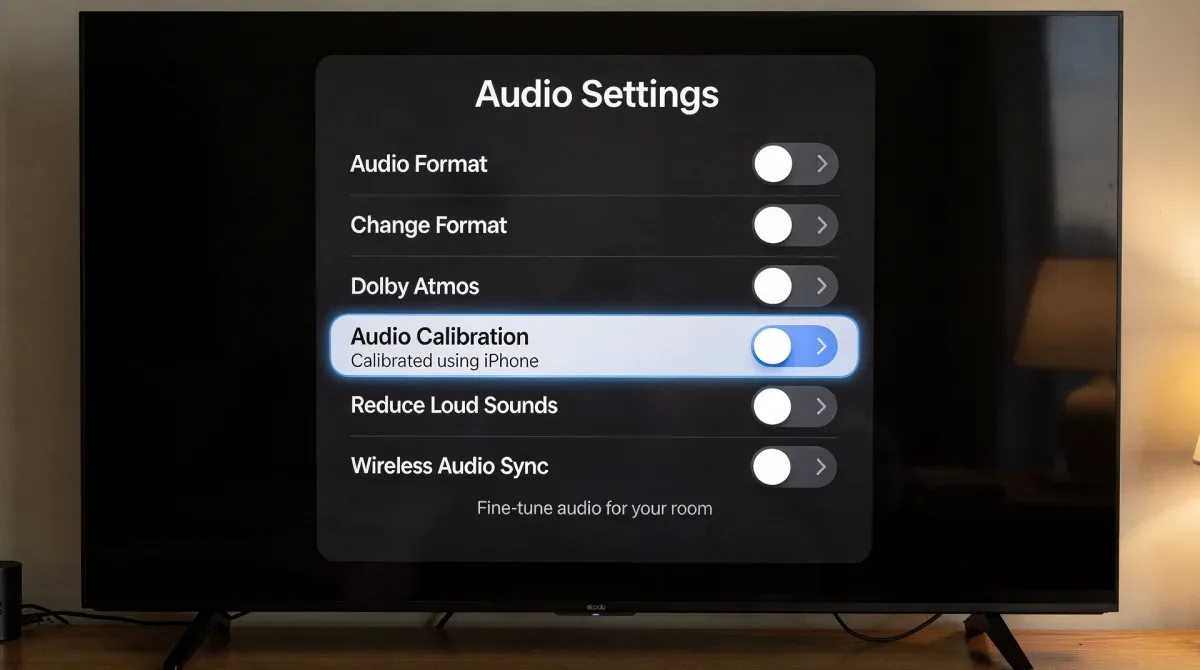
The difference between 'Auto' and 'Dolby Digital 5.1' can be subtle but crucial. When 'Auto' is selected, the Apple TV tries to detect the best possible format supported by your audio equipment. If your receiver or soundbar is older or has specific limitations, 'Auto' might default to a less capable format than it could actually handle, or it might struggle with newer formats like Dolby Atmos, leading to processing errors that manifest as unclear dialogue. Manually setting it to 'Dolby Digital 5.1' ensures a consistent, widely compatible output that many systems process efficiently.
Choosing the Right Mode
To find these settings, navigate to Settings > Video and Audio > Audio Output. Here you'll find options for 'Audio Mode'. Experimentation is key to finding the best fit for your specific setup. If you have a dedicated 5.1 or 7.1 surround sound system that primarily supports Dolby Digital, explicitly selecting 'Dolby Digital 5.1' can often yield clearer results than 'Auto', which might attempt to send a more complex signal that your system then downmixes imperfectly.
- For Dolby Atmos Systems: If your system fully supports Dolby Atmos, ensure 'Change Format' is set to 'Auto' (Recommended) to allow Atmos passthrough.
- For Non-Atmos Systems: If you don't have an Atmos-capable system, setting 'Change Format' to 'Dolby Digital 5.1' (if available) under 'Audio Format' can prevent the Apple TV from sending formats your system can't natively handle well.
- Passthrough vs. Encoding: Understanding whether your receiver is doing the decoding (passthrough) or if the Apple TV is encoding the signal is vital. Generally, letting the receiver do the heavy lifting is preferred.
By carefully selecting the audio mode, you ensure that the sound signal sent from your Apple TV 4K is in a format that your audio system can process most effectively, minimizing any potential for signal degradation that could compromise dialogue clarity. This step is a foundational element of proper audio calibration.
3. Audio Format: Manual Selection for Consistent Decoding
Beyond the general 'Audio Mode', the Apple TV 4K also allows for more granular control over the specific 'Audio Format' that is outputted. This setting is particularly potent for resolving dialogue issues that arise from inconsistent audio decoding, especially when dealing with various streaming sources and their differing audio tracks. By manually overriding the automatic format detection, you can ensure a stable and predictable audio stream, which often translates directly to improved dialogue intelligibility.
The 'Audio Format' setting is typically found under Settings > Video and Audio > Audio Format > Change Format. Here, you might see options like 'Auto (Recommended)', 'Dolby Digital 5.1', or 'Stereo'. While 'Auto' attempts to negotiate the best format with your connected receiver or soundbar, this negotiation isn't always perfect. Sometimes, the automatic detection can lead to formats being downmixed or upmixed incorrectly, resulting in a loss of clarity, particularly for the crucial center channel dialogue.
Forcing a Specific Format
If you're experiencing persistent dialogue clarity issues, especially with certain apps or content, consider experimenting with forcing a specific audio format. For many users with soundbars or 5.1 surround sound systems, setting 'Change Format' to 'Dolby Digital 5.1' can provide a more consistent and clearer dialogue experience. This tells the Apple TV to always output a Dolby Digital 5.1 signal, regardless of the source, which can be beneficial if your system handles this format robustly.
- Consistency Over Auto: Manual selection ensures your audio system is always receiving a format it's optimized to decode, reducing potential processing errors.
- Downmixing Considerations: If your content is Dolby Atmos but your system is 5.1, forcing Dolby Digital 5.1 ensures a controlled downmix by the Apple TV, rather than leaving it to potentially less sophisticated processing in your receiver.
- Stereo for Simplicity: In some cases, if you only have a stereo setup, forcing 'Stereo' can prevent complex surround sound signals from being poorly downmixed, leading to cleaner two-channel audio.
The key here is control. By taking the reins from the 'Auto' setting and specifying a format that your audio system excels at decoding, you eliminate a variable that can often contribute to muddled dialogue. This hidden calibration can be a powerful tool in your quest for perfect movie sound.
4. Calibrating with Your iPhone: The Room Correction Tool
Apple has integrated a remarkably clever room correction tool into the Apple TV 4K, leveraging your iPhone's microphone to analyze your room's acoustics and adjust the audio output accordingly. This feature, often overlooked, is a powerful hidden setting that can significantly improve overall sound quality, including dialogue clarity, by compensating for the unique sonic characteristics of your viewing space. Room acoustics play a huge role in how sound is perceived, and without correction, reflections and resonances can obscure dialogue.
TruePlay, a similar technology from Sonos, has demonstrated the effectiveness of such calibration. Apple's version works by playing a series of test tones through your connected speakers, which your iPhone then captures. The Apple TV then uses this data to create an equalization profile that optimizes the audio for your specific room, aiming for a more balanced and accurate sound reproduction. This includes subtle adjustments that can bring out the mid-range frequencies where most dialogue resides.
Accessing this feature is intuitive. Go to Settings > Video and Audio > Calibration > Wireless Audio Sync. Follow the on-screen prompts, which will instruct you to hold your iPhone near the TV screen and then move it around the room as test tones are played. It's a quick process that yields surprisingly noticeable improvements, especially in rooms with challenging acoustics, such as those with hard surfaces or irregular shapes.
Benefits of Room Calibration
- Acoustic Compensation: Corrects for sound reflections, absorption, and standing waves that can negatively impact clarity.
- Balanced Frequencies: Helps ensure that all frequencies, including those critical for dialogue, are reproduced at appropriate levels.
- Enhanced Immersion: A more accurate soundstage contributes to a more immersive and enjoyable listening experience.
- Simplicity: It's an automated process that requires minimal effort and no specialized audio knowledge.
This iPhone-assisted room calibration is a hidden gem for anyone serious about optimizing their Apple TV 4K audio. It addresses the often-neglected environmental factor in audio reproduction, making it a crucial step in achieving superior dialogue clarity and a more refined overall sound experience.
5. Experimenting with Audio Passthrough and EQ Settings (Advanced)
For advanced users and those with sophisticated AV receivers, delving into explicit audio passthrough settings and any available equalization (EQ) options can unlock further dialogue clarity. While the Apple TV 4K doesn't offer a full-fledged graphic equalizer, understanding how it interacts with your receiver's capabilities is paramount. The goal is to ensure the purest possible audio signal reaches your receiver, allowing its more powerful processing to take over without interference.
The concept of audio passthrough means the Apple TV sends the raw audio stream directly to your receiver without any internal processing or decoding. This is generally preferred for high-end setups, as it allows the receiver's superior Digital-to-Analog Converters (DACs) and processing algorithms to handle the audio, often resulting in a richer, more accurate sound. However, achieving true passthrough for all formats can sometimes be tricky depending on the content and your receiver's specific capabilities.
Leveraging Your Receiver's EQ
While the Apple TV 4K itself lacks direct EQ controls, your AV receiver almost certainly has them. If after all other adjustments, dialogue still feels recessed, consider making subtle EQ adjustments on your receiver. Focus on boosting frequencies typically associated with the human voice, generally in the 1kHz to 4kHz range, on your center channel. Even a small increase of 1-2dB in these frequencies can make dialogue pop without making it sound unnatural.
- Check for 'Pure Direct' Modes: Many receivers have a 'Pure Direct' or 'Direct' audio mode that bypasses all internal processing for the cleanest signal. Experiment with this if your system allows.
- Receiver's Dialogue Enhancement: Some modern AV receivers and soundbars include dedicated "dialogue enhancement" or "voice mode" features. Explore these settings on your external audio device.
- Firmware and Updates: Ensure both your Apple TV and your AV receiver have the latest firmware updates, as these often include audio processing improvements.
This advanced approach requires a bit more technical understanding and willingness to experiment, but for those seeking the absolute pinnacle of dialogue clarity from their Apple TV 4K setup, it offers the most granular control. By optimizing the handoff between the Apple TV and your external audio system, and then fine-tuning your receiver's EQ, you can achieve a truly bespoke audio experience where every word is crystal clear.
Beyond the Settings: Additional Tips for Optimal Dialogue
While the hidden Apple TV 4K audio calibration settings are powerful, achieving truly optimal dialogue clarity often involves considering factors beyond the device itself. A holistic approach that encompasses your entire home theater environment can further elevate your listening experience. These additional tips focus on environmental adjustments, content considerations, and maintenance, ensuring that your meticulously calibrated Apple TV 4K audio isn't hampered by external influences.
The interplay between software settings and physical environment is crucial. For instance, even with perfect digital processing, a room with excessive echoes or poor speaker placement will inevitably degrade dialogue. Similarly, the quality of the source audio can vary wildly between streaming services or even within the same service, presenting challenges that software settings alone cannot fully overcome. Being aware of these variables allows for a more comprehensive strategy.
Room Acoustics and Speaker Placement
Your room's acoustics significantly impact sound. Hard surfaces (bare walls, glass, tile floors) reflect sound, creating echoes that can muddle dialogue. Soft furnishings (rugs, curtains, upholstered furniture) absorb sound, reducing reflections. Speaker placement is also critical, especially for the center channel, which carries most dialogue. Ensure it's at ear level and unobstructed.
- Acoustic Treatment: Consider adding rugs, curtains, or even dedicated acoustic panels to reduce reverberation.
- Center Channel Elevation: If your center speaker is below ear level, consider tilting it upwards slightly to aim sound directly at your listening position.
- Distance from Walls: Pulling speakers slightly away from walls can improve soundstage and clarity by reducing bass boom and reflections.
Another often-overlooked aspect is the quality of the source material. Some older movies or lower-bitrate streams might simply have less defined audio tracks. While the Apple TV 4K can enhance what's there, it cannot create detail that doesn't exist. Always try to stream content in the highest possible audio quality available.
Finally, ensure all your cables are high-quality and securely connected. Loose or damaged HDMI or optical cables can introduce interference or signal loss, impacting audio fidelity. Regularly check for firmware updates for your Apple TV, soundbar, or AV receiver, as manufacturers frequently release updates that improve audio performance and compatibility. By combining these external optimizations with the hidden Apple TV 4K settings, you'll be well on your way to experiencing movie dialogue with unprecedented clarity.
| Key Setting | Description for Dialogue Clarity |
|---|---|
| Reduce Loud Sounds | Compresses dynamic range, making quiet dialogue louder and loud effects softer. |
| Audio Mode | Manually select output format (e.g., Dolby Digital 5.1) for consistent receiver decoding. |
| Audio Format | Override 'Auto' to force a specific, compatible format for stable audio streams. |
| iPhone Room Calibration | Uses iPhone mic to analyze room acoustics and optimize audio output for balance. |
Frequently Asked Questions About Apple TV 4K Audio
Why is dialogue often hard to hear on my Apple TV 4K?▼Dialogue can be difficult to hear due to wide dynamic range in movies, sub-optimal audio settings on your Apple TV 4K, improper external sound system configuration, or challenging room acoustics. Modern soundtracks often prioritize immersive effects over consistent dialogue levels, requiring manual adjustments to achieve clarity.
Does "Reduce Loud Sounds" affect overall audio quality?▼Yes, "Reduce Loud Sounds" compresses the dynamic range, meaning the difference between the loudest and quietest sounds is reduced. While this significantly enhances dialogue clarity by making whispers more audible, it can slightly alter the original artistic intent of the sound mix, making action scenes less impactful for some listeners.
Should I use "Auto" or a specific audio format like Dolby Digital 5.1?▼While "Auto" is recommended for convenience, manually selecting a specific format like "Dolby Digital 5.1" can provide more consistent dialogue clarity. This is especially true if your receiver struggles with automatic format detection or if you want to ensure a stable, well-supported audio stream for your sound system.
How does iPhone room calibration improve dialogue?▼The iPhone room calibration feature uses your phone's microphone to analyze how sound behaves in your specific room. It then creates an audio profile that compensates for reflections and resonances, ensuring that all frequencies, including those essential for clear dialogue, are reproduced more accurately and balanced for your listening space.
Can my AV receiver's settings also help with dialogue clarity?▼Absolutely. Your AV receiver or soundbar often has its own set of advanced audio controls, including dedicated dialogue enhancement modes, graphic equalizers, and room correction systems. These can be used in conjunction with Apple TV 4K settings to further fine-tune and boost dialogue frequencies for an even clearer listening experience.
Conclusion
Achieving pristine movie dialogue clarity on your Apple TV 4K is not an insurmountable challenge, but rather an opportunity to meticulously fine-tune your home entertainment setup. By exploring and adjusting these five often-hidden audio calibration settings—"Reduce Loud Sounds," Audio Mode, Audio Format, iPhone Room Calibration, and advanced passthrough/EQ considerations—you can transform a frustrating listening experience into an immersive and enjoyable one. Remember that a holistic approach, encompassing both the Apple TV's internal configurations and your external sound system's capabilities, along with proper room acoustics, is key to unlocking the full potential of your audio. No more struggling to catch every whispered word; now, you can truly hear every detail as the filmmakers intended, making your movie nights more engaging and satisfying than ever before.
