OLED TV Picture Settings: Authentic 24fps Cinematic Experience
Achieving an authentic 24fps cinematic experience on your OLED TV involves precise picture settings, including disabling motion interpolation, adjusting refresh rates, and selecting appropriate film modes to preserve the director's original vision without introducing unwanted artifacts.
Are you ready to truly experience movies as their creators intended? Learning how to configure your OLED TV picture settings for an authentic 24fps cinematic experience is crucial for any film enthusiast seeking to unlock the full potential of their home theater.
Understanding the 24fps cinematic standard
The 24 frames per second (24fps) standard is the cornerstone of traditional filmmaking, a legacy from the early days of cinema. This specific frame rate creates a distinct motion blur and a particular visual rhythm that audiences have come to associate with the 'film look'. Modern OLED TVs, with their incredible contrast and color accuracy, offer the perfect canvas to reproduce this authentic experience, but only if configured correctly.
When films are shot at 24fps, each frame is displayed for a slightly longer duration than in higher frame rates, resulting in a subtle blurring effect during motion. This blur is not a flaw; it's an intentional artistic choice that contributes to the dreamlike quality of cinema. Understanding this fundamental principle is the first step toward optimizing your OLED TV.
The history and artistic intent of 24fps
The 24fps standard emerged as a balance between cost-effectiveness and visual fluidity during the silent film era's transition to sound. It was the slowest frame rate that allowed for clear audio synchronization without appearing jerky to the human eye. Over decades, filmmakers have mastered this rate, using its inherent characteristics to convey emotion, scale, and narrative rhythm.
- Preserving artistic vision: Directors meticulously craft every frame; altering the frame rate changes their intended visual impact.
- Natural motion blur: This subtle blur is integral to the cinematic aesthetic, avoiding the overly sharp, 'soap opera effect'.
- Emotional connection: The rhythm of 24fps often feels more natural and immersive for storytelling than hyper-smooth video.
Why higher frame rates can detract from the film look
While higher frame rates (like 60fps or 120fps) are excellent for sports or video games, they can inadvertently strip away the cinematic feel from movies. These rates reduce motion blur, making movement appear unnaturally smooth and often leading to what is commonly called the 'soap opera effect'. This effect can make big-budget films look like low-budget television productions, disrupting immersion and the director's artistic intent.
OLED TVs are capable of displaying extremely high refresh rates, which is fantastic for certain content. However, for movies, it's about making sure the TV doesn't try to 'improve' what is already perfect by adding frames that were never there in the original recording. Disabling motion interpolation is paramount to this goal.
Initial setup: basic picture modes and settings
Before diving into advanced adjustments, it's essential to set a strong foundation with your OLED TV's basic picture modes. Most OLED TVs come with several preset modes, and choosing the right one is the first critical step towards a cinematic experience. These modes often provide a good starting point, which you can then fine-tune.
Many manufacturers include a 'Cinema' or 'Movie' picture mode, specifically designed to emulate the viewing conditions found in a professional studio or theater. This mode typically aims for accurate color reproduction, appropriate contrast levels, and often disables or minimizes motion processing by default.
Choosing the right picture mode
When you first power on your OLED TV, you'll likely see modes like 'Standard', 'Vivid', 'Sports', and 'Cinema' or 'Movie'. For an authentic 24fps cinematic experience, you should always start with 'Cinema' or 'Movie' mode. These modes prioritize accuracy over vibrancy or brightness, which are often exaggerated in other presets.
- Cinema/Movie mode: Designed for accurate color, gamma, and white balance, reflecting industry standards.
- Filmmaker mode: A newer standard, supported by many OLEDs, that automatically disables post-processing to display content as intended.
- Avoid 'Vivid' or 'Dynamic': These modes typically boost brightness, saturation, and sharpness to unnatural levels, distorting the original image.
Essential settings to check first
Once you've selected your base picture mode, there are a few immediate settings to verify. These are often enabled by default even in 'Cinema' modes and can significantly impact the 24fps feel. Look for settings related to brightness, contrast, and color temperature.
Ensure your OLED TV's brightness is set appropriately for your viewing environment. A common mistake is to set brightness too high, which can wash out blacks and reduce overall contrast, especially critical for OLED's strengths. Aim for a comfortable level that allows dark scenes to retain detail without being overly dim.
Disabling motion interpolation and smoothing
This is arguably the most critical step in achieving an authentic 24fps cinematic experience on your OLED TV. Motion interpolation, often marketed as 'motion smoothing', 'TruMotion', 'MotionFlow', or similar names, is a feature designed to make fast-moving content appear smoother by inserting artificially generated frames between the original ones. While beneficial for sports, it's detrimental to film.
The 'soap opera effect' is the direct result of motion interpolation. It removes the natural motion blur inherent in 24fps film, making movies look like they were shot on video. Disabling this feature immediately restores the filmic quality and the director's original intent. Every OLED TV manufacturer has a different name for this setting, so you'll need to consult your TV's specific menu options.
Locating and turning off motion processing
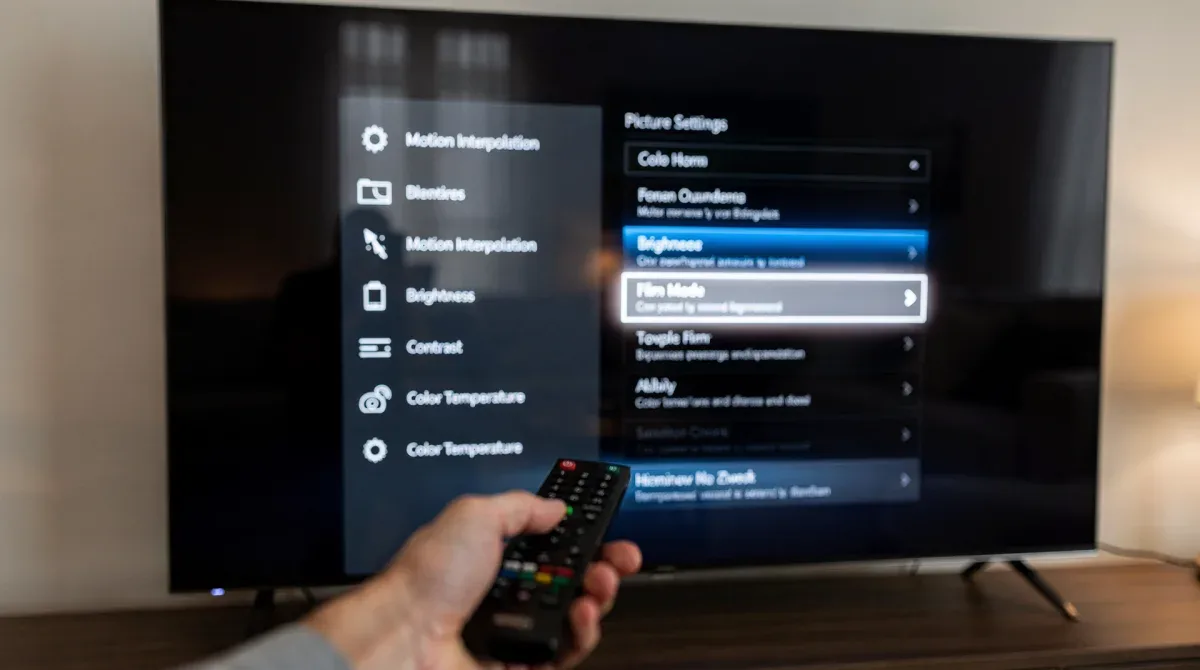
Navigating through your OLED TV's menu system to find the motion processing settings can sometimes be a challenge, as manufacturers tend to bury these options under various sub-menus. Typically, you'll find them under a 'Picture' or 'Expert Settings' tab, often within a 'Clarity' or 'Motion' section.
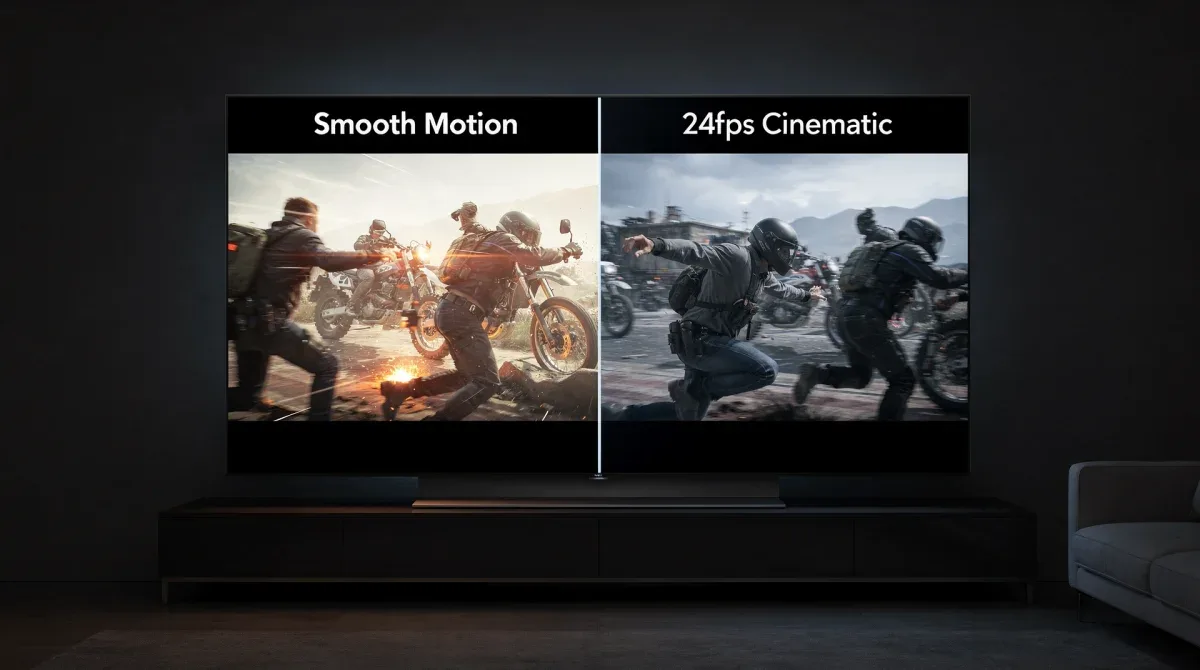
Look for terms like 'Motion Interpolation', 'Motion Smoothing', 'TruMotion' (LG), 'MotionFlow' (Sony), 'Auto Motion Plus' (Samsung), or 'Clear Motion' (Panasonic). The goal is to set these to 'Off' or 'Custom' with all smoothing parameters at their lowest possible setting. Some TVs offer a 'Film Mode' or 'Cinematic Motion' option that automatically adjusts these for film content.
The 'soap opera effect' and why to avoid it
The 'soap opera effect' is a phenomenon where films, originally shot at 24fps, appear unnaturally smooth and hyper-realistic due to motion interpolation. This effect, while often praised by some for making motion seem clearer, fundamentally alters the visual language of cinema. It strips away the subtle motion blur that gives movies their characteristic look, making them resemble live television broadcasts.
Filmmakers intentionally use 24fps to create a specific aesthetic, and motion interpolation overrides this artistic choice. Disabling it ensures that you see the film exactly as the director intended, preserving the natural feel and pacing of cinematic storytelling. It's a critical step for anyone serious about an authentic viewing experience.
Advanced picture settings for color and contrast
Once motion processing is handled, you can delve into more nuanced adjustments that significantly impact the visual fidelity of your OLED TV. Color accuracy and contrast performance are paramount for OLEDs, and fine-tuning these settings can elevate your cinematic experience from good to truly exceptional. These adjustments require a discerning eye and sometimes a reference disc.
OLED technology excels at producing perfect blacks and vibrant colors, but these attributes can be compromised if settings like color temperature, gamma, and black level are not correctly configured. The goal is to achieve a balanced image that faithfully reproduces the source material without artificial enhancement.
Calibrating color temperature and white balance
Color temperature dictates the overall warmth or coolness of the image. For cinematic content, the industry standard is D65 (6500 Kelvin), which corresponds to a neutral white. Many TVs default to a cooler temperature ('Cool' or 'Standard'), which can give whites a bluish tint.
- Warm2 or Warm: Most OLED TVs have a 'Warm2' or 'Warm' setting that closely approximates D65. Selecting this will make whites appear more natural and colors more accurate to the film's original grading.
- White balance controls: Advanced users can delve into the 2-point or 10-point white balance controls to fine-tune the grayscale, ensuring neutral grays across all brightness levels. This is typically done with calibration tools.
Optimizing gamma and black levels
Gamma controls the luminance response, or how quickly the image transitions from black to white. For most cinematic content in a dark room, a gamma setting of 2.4 is ideal, as it provides a smooth, gradual increase in brightness from the darkest shadows, preserving detail without crushing blacks.
Black levels are where OLEDs truly shine. Ensure your 'Black Level' or 'HDMI Black Level' setting matches your source device. If your source (e.g., Blu-ray player, streaming device) outputs 'Limited' RGB (16-235), your TV should be set to 'Limited'. If the source outputs 'Full' RGB (0-255), your TV should be on 'Full'. Mismatched settings can lead to crushed blacks or washed-out images.
HDR and Dolby Vision considerations for 24fps
High Dynamic Range (HDR) and Dolby Vision have revolutionized home cinema, offering unparalleled contrast, brightness, and color volume. When viewing 24fps content in HDR or Dolby Vision, your OLED TV automatically switches to specific picture modes designed to handle these formats. However, even within these modes, some manual adjustments might be necessary to ensure an authentic cinematic experience.
OLEDs are inherently excellent for HDR due to their perfect black levels, which allow for stunning contrast. The key is to ensure that the TV's processing for HDR and Dolby Vision doesn't inadvertently reintroduce motion smoothing or other unwanted effects that detract from the 24fps film look.
HDR picture modes and their nuances
When an HDR10 or Dolby Vision signal is detected, your OLED TV will typically engage a specific HDR picture mode, such as 'HDR Cinema', 'Dolby Vision IQ', or 'Dolby Vision Dark'. These modes are generally well-calibrated out of the box, but it's always good to check.
For Dolby Vision, 'Dolby Vision IQ' or 'Dolby Vision Dark' are often preferred for dark room viewing, as they aim for accuracy and respect the original content creator's intent. 'Dolby Vision Bright' might be too aggressive for a dedicated cinema environment. Always ensure that any motion processing settings that may have reactivated in these modes are disabled.
Maintaining 24fps integrity with dynamic metadata
Both HDR10+ and Dolby Vision utilize dynamic metadata, which means picture settings can change frame by frame to optimize the image. While this is generally beneficial, it's crucial that this dynamic adjustment doesn't interfere with the smooth, natural motion of 24fps content. Most modern OLEDs handle this intelligently.
- Source device settings: Ensure your source device (4K Blu-ray player, streaming stick) is configured to output HDR/Dolby Vision correctly and that its own motion processing is disabled.
- TV firmware updates: Keep your OLED TV's firmware updated, as manufacturers often release updates that improve HDR/Dolby Vision processing and compatibility.
- Experiment with settings: While 'Filmmaker Mode' or 'Cinema' is usually best, some HDR content might benefit from slight tweaks to brightness or contrast based on your specific viewing room.
Source device configuration and connectivity
Optimizing your OLED TV's picture settings is only half the battle; ensuring your source devices are also correctly configured is equally vital for an authentic 24fps cinematic experience. A perfectly calibrated TV can't fix a poorly transmitted signal. This involves checking output settings on your Blu-ray player, streaming devices, and even your AV receiver.
The connection type also plays a significant role. Always use high-quality HDMI cables that support the necessary bandwidth for 4K HDR at 24fps. Older or lower-quality cables can introduce artifacts or prevent the TV from receiving the optimal signal.
Optimizing your Blu-ray player and streaming devices
Most 4K Blu-ray players and high-end streaming devices (like Apple TV 4K, Nvidia Shield TV Pro, or Roku Ultra) offer extensive video output settings. For 24fps content, ensure the following:
- Native 24fps output: Set your device to output 24p (or 23.976Hz) directly, rather than converting it to 60Hz. This prevents unnecessary frame rate conversion that can introduce judder.
- Color space: Use 'YCbCr 4:4:4' or 'RGB Full' if your TV supports it and your cable bandwidth allows, otherwise 'YCbCr 4:2:2' is a good compromise.
- HDR/Dolby Vision passthrough: Confirm that your device is set to passthrough HDR10 and Dolby Vision signals without any internal processing that might alter the metadata.
HDMI settings and refresh rate matching
HDMI is the conduit for your visual and audio data. Modern HDMI ports (HDMI 2.0 or 2.1) are crucial for 4K 24fps HDR content. Ensure your TV's HDMI inputs are set to 'Enhanced' or 'Full' mode to allow for the full bandwidth required for these signals. This setting is often found in the TV's general settings menu under 'HDMI Input' or 'External Device Manager'.
The most important aspect of connectivity for 24fps is refresh rate matching. Many streaming apps and devices now offer a 'match frame rate' option. Enable this! It tells your device to switch its output frame rate to match the content being played (e.g., 24fps for movies, 30fps for some TV shows). This eliminates judder caused by the TV having to perform a 3:2 pulldown conversion from 24fps to 60Hz, which is a common source of motion artifacts.

Fine-tuning for specific viewing environments
While industry standards provide an excellent baseline, your unique viewing environment plays a significant role in how you perceive the image. Factors like room lighting, wall colors, and even seating distance can influence the perceived quality of your OLED TV's picture. A truly authentic 24fps cinematic experience is one that feels right to you in your specific space.
Adjusting certain settings based on your room can enhance immersion without compromising the director's artistic intent. This isn't about wildly deviating from calibrated settings but making subtle tweaks that compensate for environmental factors.
Ambient light and brightness adjustments
OLED TVs excel in dark rooms, where their perfect blacks can truly shine. If you primarily watch movies in a completely dark environment, you can often run your OLED at a lower 'OLED Light' or 'Brightness' setting. This preserves black detail and reduces eye strain.
- Dark room viewing: Lower 'OLED Light' or 'Brightness' to around 50-70% of maximum. This maintains deep blacks and reduces overall light output, ideal for a theater-like experience.
- Moderately lit room: If there's some ambient light, you might need to slightly increase 'OLED Light' to overcome reflections or make the image more visible, but be careful not to crush blacks.
- Disable ambient light sensors: For critical viewing, turn off any 'Ambient Light Sensor' or 'Eco Mode' features, as these automatically adjust brightness and can be inconsistent.
Personal preferences and subtle tweaks
While the goal is accuracy, there's always room for minor personal preference, especially once core settings are optimized. Some viewers might prefer a slightly warmer color temperature, or a touch more sharpness (though generally, 'Sharpness' should be kept at its lowest or '0' setting to avoid artificial edge enhancement).
After all the technical adjustments, watch a variety of your favorite films. Pay attention to how motion looks, how colors are rendered, and the depth of black levels. If something feels off, revisit specific settings with small, incremental changes. The most authentic experience is one that delights your eyes and fully immerses you in the story, without any distracting visual artifacts.
| Key Setting | Recommendation for 24fps |
|---|---|
| Picture Mode | Select 'Cinema', 'Movie', or 'Filmmaker Mode' for accuracy. |
| Motion Smoothing | Turn 'Off' or set to 'Custom' with all smoothing parameters at zero. |
| Color Temperature | Choose 'Warm2' or 'Warm' for accurate D65 white balance. |
| Source Refresh Rate | Enable 'Match Frame Rate' on streaming devices for native 24p output. |
Frequently asked questions
What is the 'soap opera effect' and how do I avoid it?▼The 'soap opera effect' makes movies look unnaturally smooth by adding artificial frames. To avoid it, disable motion interpolation settings on your OLED TV. Look for terms like 'TruMotion', 'MotionFlow', or 'Auto Motion Plus' in your TV's picture settings menu and set them to 'Off' or their lowest custom value.
Why is 24fps important for cinematic viewing?▼24fps is the traditional frame rate for films, creating a distinct motion blur and visual rhythm that filmmakers intend. It preserves the artistic vision, provides natural motion, and contributes to the immersive storytelling experience, distinguishing movies from live video content.
Which picture mode is best for movies on an OLED TV?▼For movies, select 'Cinema', 'Movie', or 'Filmmaker Mode' on your OLED TV. These modes are designed to reproduce colors, contrast, and motion accurately, aligning with industry standards and the director's original intent, avoiding over-processed visuals.
Should I adjust my OLED TV's brightness for a cinematic experience?▼Yes, adjust 'OLED Light' or 'Brightness' based on your viewing environment. In a dark room, lower settings (e.g., 50-70%) enhance deep blacks and reduce eye strain. In brighter rooms, a slight increase might be necessary, but avoid crushing shadow details.
How do HDR and Dolby Vision affect 24fps settings?▼HDR and Dolby Vision automatically engage specific picture modes. While generally accurate, ensure motion processing remains disabled. For Dolby Vision, 'IQ' or 'Dark' modes are often best for cinematic accuracy in dim environments. Always keep TV firmware updated for optimal processing.
Conclusion
Mastering how to configure your OLED TV picture settings for an authentic 24fps cinematic experience is a journey that transforms your viewing from merely watching a movie into truly experiencing it. By understanding the nuances of frame rates, diligently disabling motion interpolation, and fine-tuning color and contrast, you can unlock the full potential of your OLED display. This meticulous approach ensures that you honor the filmmaker's original vision, enjoying every subtle detail and the natural motion that defines the magic of cinema. The effort invested in these settings will undoubtedly elevate your home entertainment, providing an immersive and visually stunning experience that brings the big screen into your living room with unparalleled fidelity.
