Thunderbolt 5 vs. USB4 Docks: Dual 8K Display Guide
Choosing between Thunderbolt 5 and USB4 docks for dual 8K displays is crucial for optimal performance, requiring an understanding of their distinct bandwidths, display protocols, and power delivery capabilities to ensure a future-proof and efficient high-resolution workspace.
Navigating the complex world of high-performance connectivity can be daunting, especially when aiming for a sophisticated setup like dual 8K displays. This guide delves into the specifics of Thunderbolt 5 vs. USB4 Docks: The Definitive Hardware Selection Guide for Dual 8K Displays, helping you make an informed decision for your professional or enthusiast workstation.
Understanding the Core Technologies: Thunderbolt 5 and USB4
Before diving into specific dock recommendations, it's essential to grasp the foundational technologies: Thunderbolt 5 and USB4. While often conflated due to their shared USB-C connector, these standards offer distinct capabilities that are critical for driving demanding setups like dual 8K displays. Understanding their underlying principles will illuminate why one might be a better fit than the other for your specific needs.
Both Thunderbolt and USB4 leverage the versatile USB-C form factor, but their specifications, particularly regarding bandwidth and display protocol support, differ significantly. This distinction becomes paramount when dealing with the immense data requirements of two 8K monitors. Each standard has evolved to address various user demands, from casual peripheral connection to high-end professional workstations.
Thunderbolt 5: Unprecedented Bandwidth and Dynamic Bandwidth Allocation
Thunderbolt 5 represents the pinnacle of current wired connectivity, offering a staggering leap in bandwidth. This latest iteration is designed to handle the most intensive data and display requirements, making it a prime candidate for dual 8K setups. Its key innovation lies in its dynamic bandwidth allocation, which intelligently adjusts data and display pipelines based on workload.
- Bidirectional Bandwidth: Thunderbolt 5 boasts up to 80 Gbps bidirectional bandwidth, with a potential for 120 Gbps in one direction for display-intensive tasks.
- DisplayPort 2.1 Support: Critical for 8K displays, as it provides the necessary bandwidth and features for uncompressed high-resolution video.
- PCIe Gen 4 Support: Enhances external GPU and high-speed storage performance, which can be beneficial for professionals.
This dynamic allocation ensures that whether you are transferring large files, gaming, or driving multiple high-resolution displays, the connection optimizes itself for peak performance. This flexibility is a significant advantage for users whose workloads vary, demanding both high data throughput and robust display capabilities.
USB4: The Universal Standard's Evolution
USB4, while also utilizing the USB-C connector, serves as a more universal standard, consolidating previous USB generations and integrating Thunderbolt 3 protocol compatibility. It aims to provide a consistent and high-performance experience across a broader range of devices. While not matching Thunderbolt 5's peak bandwidth, USB4 offers substantial improvements over its predecessors.
- Up to 40 Gbps Bandwidth: USB4 typically offers 40 Gbps, which is shared between data and display signals.
- DisplayPort Alt Mode: Supports DisplayPort 1.4 or 2.0, depending on the implementation, crucial for higher resolutions.
- Backward Compatibility: Excellent compatibility with USB 3.2, USB 2.0, and often Thunderbolt 3 devices.
The strength of USB4 lies in its ubiquity and backward compatibility, making it a versatile choice for many users. However, the shared bandwidth and potentially lower DisplayPort version support can become a bottleneck when pushing the limits with dual 8K displays, where every gigabit per second counts.
Bandwidth Requirements for Dual 8K Displays
Driving dual 8K displays is no small feat; it demands an immense amount of bandwidth. Understanding these requirements is fundamental to selecting the right docking station. An 8K resolution (7680 x 4320 pixels) at a standard refresh rate of 60Hz, especially with high color depth (e.g., 10-bit HDR), consumes a significant portion of any available bandwidth. When you double that to two monitors, the demands escalate dramatically.
Uncompressed 8K video at 60Hz with 10-bit color requires approximately 48 Gbps per display. This figure can be reduced with Display Stream Compression (DSC), but even with compression, the aggregate bandwidth needed for two such displays quickly approaches or exceeds the capabilities of many current connectivity standards. The goal is to ensure a smooth, artifact-free visual experience without compromises.
Thunderbolt 5: The Bandwidth King for 8K
With its 80 Gbps bidirectional bandwidth, and up to 120 Gbps for display-intensive workloads, Thunderbolt 5 is explicitly designed to handle dual 8K displays with ease. This capability is largely thanks to its support for DisplayPort 2.1, which offers much higher bandwidth per lane compared to DisplayPort 1.4.
The dynamic bandwidth allocation of Thunderbolt 5 is particularly advantageous here. If your primary use case is driving two 8K monitors, the system can prioritize display bandwidth, ensuring uncompromised visual fidelity. This means you can run two 8K displays at 60Hz, possibly even higher refresh rates or with HDR, without resorting to heavy compression that might introduce visual artifacts.
USB4: Navigating 8K with Potential Limitations
USB4, with its typical 40 Gbps bandwidth, faces a more challenging task when it comes to dual 8K displays. While it can technically support a single 8K display, especially with DSC, two 8K monitors at 60Hz might push its limits. The shared nature of the 40 Gbps bandwidth means that any data transfer (e.g., from an external SSD) will compete with the display signals.
To achieve dual 8K with USB4, you would likely need docks that support DisplayPort 2.0 or 2.1 via Alt Mode, and even then, DSC would be almost certainly required. While DSC is visually lossless for most users, it's still a form of compression. For professionals who demand absolute pixel perfection or specific applications sensitive to latency, this could be a consideration.
Key Features to Look for in a Docking Station
Beyond raw bandwidth, a high-quality docking station for dual 8K displays needs to offer a comprehensive set of features. The utility of a dock extends far beyond just display output; it's about transforming your laptop into a complete desktop workstation with a single cable connection. This includes power delivery, a variety of peripheral ports, and robust build quality.
When evaluating docks, consider how they integrate into your existing ecosystem and how they prepare you for future upgrades. A good dock should be an investment that simplifies your setup and enhances productivity, not a source of frustration. Pay attention to the details, as small differences can have a big impact on daily use.
Power Delivery and Charging Capabilities
One of the most critical features of any modern docking station is power delivery (PD). A good dock should be able to charge your laptop while simultaneously driving displays and peripherals. This eliminates the need for a separate power brick for your laptop, simplifying cable management and reducing clutter.
- High Wattage PD: Look for docks offering 90W or more for power delivery to ensure your high-performance laptop charges efficiently, even under heavy load.
- Smart Power Management: Some docks offer intelligent power distribution, prioritizing laptop charging while still providing adequate power to connected devices.
Insufficient power delivery can lead to slow charging or, in worst-case scenarios, your laptop battery draining even while connected to the dock. Always check your laptop's power requirements and match them with the dock's PD capabilities.
Port Selection and Connectivity Options
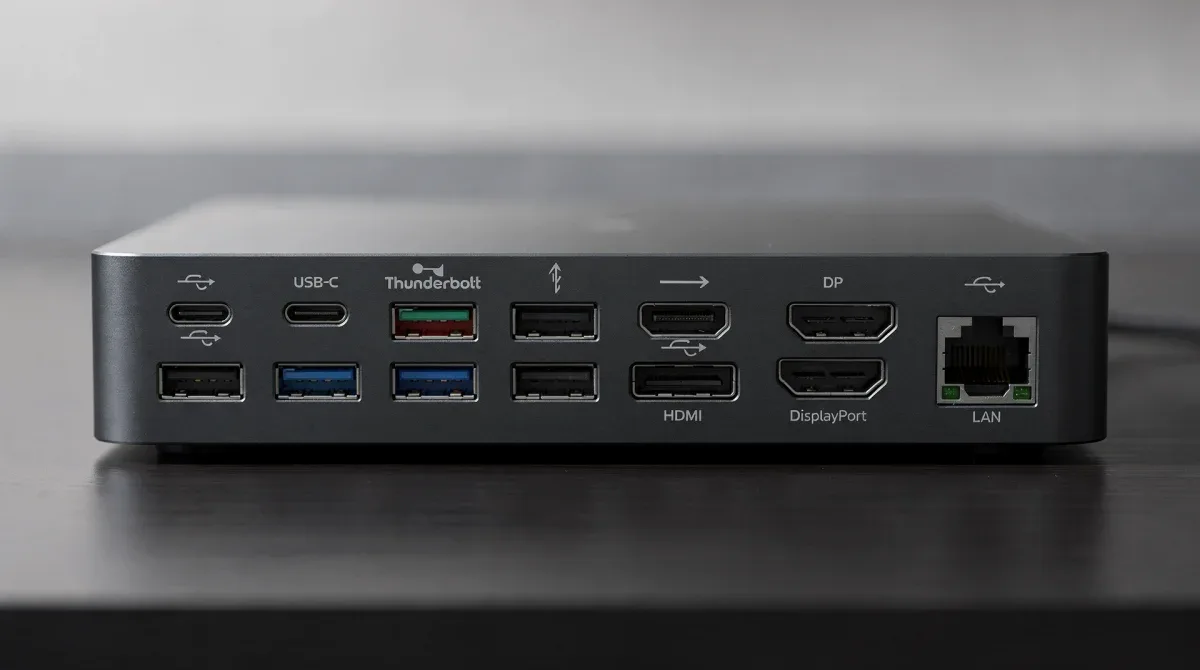
A docking station is essentially a hub for all your peripherals. The number and type of ports available will dictate the versatility of your setup. For a dual 8K display environment, specific video output ports are paramount, but other connectivity options are also crucial.
- Video Outputs: Ensure the dock has at least two DisplayPort 2.1 or HDMI 2.1 ports to support dual 8K.
- USB-A and USB-C Ports: A good mix of these for older and newer peripherals, including high-speed USB 3.2 or USB4 ports.
- Ethernet: A 2.5GbE or even 10GbE port for reliable and fast wired network connectivity, essential for large file transfers or network-intensive tasks.
- Audio Jacks: For headphones, microphones, or external speakers.
- SD Card Readers: Convenient for photographers and videographers.
The ideal port selection will vary depending on your specific peripherals and workflow. It's often beneficial to list out all the devices you plan to connect and ensure the dock can accommodate them all simultaneously without compromise.
Compatibility and Future-Proofing Your Setup
When investing in a high-end docking station for dual 8K displays, compatibility and future-proofing are critical considerations. You want a solution that works seamlessly with your current hardware and can adapt to future technological advancements. The rapid pace of tech evolution means that what's cutting-edge today might be standard tomorrow, but a well-chosen dock can extend its useful life considerably.
Understanding the nuances of host device compatibility, operating system support, and the upgrade path for your peripherals will ensure your investment remains valuable for years to come. A dock is more than just a connector; it's the central nervous system of your advanced workstation.
Host Device Compatibility: Thunderbolt vs. USB4 Ports
The type of port on your host computer (laptop or desktop) is the primary determinant of which dock you can use. While USB-C is the physical connector for both, the underlying protocol matters immensely.
- Thunderbolt 5 Host: A computer with a Thunderbolt 5 port will offer the full benefits of a Thunderbolt 5 dock, including dynamic bandwidth and higher data rates. It is also backward compatible with Thunderbolt 4, Thunderbolt 3, and USB4 docks.
- USB4 Host: A computer with a USB4 port can utilize USB4 docks. It may also offer limited compatibility with Thunderbolt 3 docks (if the USB4 implementation includes Thunderbolt 3 fallback). However, it will not fully leverage a Thunderbolt 5 dock's advanced features, especially the higher display bandwidth.
- Thunderbolt 4 Host: A computer with a Thunderbolt 4 port can use Thunderbolt 4, Thunderbolt 3, and USB4 docks. While it might offer some compatibility with Thunderbolt 5 docks (operating at Thunderbolt 4 speeds), it won't unlock the full 80/120 Gbps bandwidth.
Always verify the specific USB-C port capabilities of your computer. Manufacturers sometimes label ports simply as 'USB-C' without specifying the underlying standard, requiring a deeper dive into your device's specifications.
Operating System and Driver Support
While most modern docks are designed for plug-and-play functionality, ensuring robust operating system and driver support is still important. This is particularly true for high-resolution setups where display drivers play a crucial role.
Check if the dock manufacturer provides specific drivers or firmware updates for your operating system (Windows, macOS, Linux). While many functions will work natively, optimized drivers can enhance stability, performance, and unlock advanced features. macOS users, in particular, should verify compatibility, as Apple's ecosystem sometimes has unique requirements.
Performance Benchmarks and Real-World Scenarios
Theoretical bandwidth figures are one thing, but real-world performance is what truly matters. How do Thunderbolt 5 and USB4 docks actually stack up when driving dual 8K displays in practical scenarios? This section explores typical use cases and the performance you can expect, helping you align your expectations with the capabilities of each technology.
From creative professionals to data scientists, different users will stress their docking stations in unique ways. Understanding these performance nuances will guide you toward the most appropriate solution for your specific workflow, ensuring maximum productivity and minimal frustration.
Creative Professionals: Video Editing and Graphic Design
For video editors working with 8K footage or graphic designers handling massive image files, a dual 8K display setup offers unparalleled screen real estate. In this scenario, Thunderbolt 5's dynamic bandwidth allocation shines. It can dedicate the necessary 120 Gbps to display output while still providing ample bandwidth for external NVMe SSDs or eGPUs.
USB4, while capable, might introduce bottlenecks. If you're simultaneously transferring large video files from an external drive connected to the dock while editing on dual 8K screens, the 40 Gbps shared bandwidth could lead to slower transfers or minor display hiccups. The uncompressed video streams and rapid data access required by creative applications make Thunderbolt 5 the superior choice here.
Developers and Data Scientists: Multi-Tasking and Large Datasets
Developers often require multiple high-resolution displays for coding, debugging, and monitoring. Data scientists manipulate vast datasets and visualize complex information. Both professions benefit from the clarity and space offered by dual 8K monitors. For these users, the balance between display performance and data throughput is key.
Thunderbolt 5 provides the headroom to run multiple virtual machines, compile code, and process data on external storage without compromising display quality. USB4 can handle these tasks, but if you're frequently moving multi-terabyte datasets or running demanding compute tasks that heavily utilize external storage via the dock, Thunderbolt 5 will offer a smoother and faster experience.

Choosing the Right Dock: Thunderbolt 5 vs. USB4
The decision between a Thunderbolt 5 and a USB4 dock for dual 8K display setup is a critical decision that impacts performance, cost, and future scalability. Both technologies offer compelling features, but their strengths are tailored to different user profiles and performance expectations. A careful evaluation of your workflow and hardware ecosystem is essential for making the optimal choice.
Consider not just your current setup, but also where you see your workstation evolving in the next few years. Investing in the right dock now can save you significant upgrade costs and compatibility headaches down the line. It's about finding the sweet spot between performance, versatility, and value.
When to Choose Thunderbolt 5 Docks
Thunderbolt 5 docks are the clear choice for users who demand the absolute best in performance and future-proofing, especially for dual 8K displays. If any of the following apply to you, Thunderbolt 5 is likely the way to go:
- You require uncompressed or minimally compressed dual 8K displays at 60Hz or higher.
- Your workflow involves frequent transfers of very large files (e.g., 8K video, massive datasets) to and from external high-speed storage connected to the dock.
- You plan to use an external GPU (eGPU) via the dock for demanding graphical tasks.
- You want the most future-proof solution, capable of handling even higher resolutions or refresh rates as they become available.
- Your host device supports Thunderbolt 5, ensuring you can leverage its full capabilities.
The premium cost of Thunderbolt 5 docks is justified by their unparalleled bandwidth, dynamic allocation, and robust support for the most demanding applications. It’s an investment in peak performance and a seamless, high-resolution experience.
When to Consider USB4 Docks
While Thunderbolt 5 offers top-tier performance, USB4 docks still present a viable and often more cost-effective solution for dual 8K displays, especially under certain conditions. Consider a USB4 dock if:
- Your budget is a primary concern, and you need a high-performance dock without the premium price tag of Thunderbolt 5.
- You are comfortable with Display Stream Compression (DSC) for your dual 8K setup, as it will likely be necessary.
- Your workflow is less data-intensive, meaning you won't constantly be pushing the limits of the shared 40 Gbps bandwidth.
- Your host device only supports USB4 (or Thunderbolt 3/4), and upgrading to a Thunderbolt 5 host is not an option.
- You value broad compatibility with a wide range of USB-C devices and peripherals.
USB4 docks offer a strong balance of performance and affordability, making them an excellent choice for users who need high-resolution capabilities but don't require the absolute maximum bandwidth for concurrent data and display streams.
| Feature | Description for Dual 8K Displays |
|---|---|
| Bandwidth | Thunderbolt 5 offers 80-120 Gbps, ideal for dual 8K. USB4 typically 40 Gbps, requiring DSC. |
| Display Support | Thunderbolt 5 with DisplayPort 2.1 is superior. USB4 may need DP Alt Mode 2.0 and DSC. |
| Power Delivery | Both can offer high PD, but verify wattage (90W+ recommended for high-performance laptops). |
| Compatibility | Thunderbolt 5 requires a Thunderbolt 5 host for full benefits; USB4 is more universal. |
Frequently asked questions
Can USB4 docks truly support dual 8K displays without compromise?▼While USB4 docks can technically support dual 8K displays, it often requires Display Stream Compression (DSC) and a robust USB4 implementation with DisplayPort 2.0/2.1 Alt Mode. The 40 Gbps shared bandwidth means concurrent high-speed data transfers may impact display performance, leading to potential compromises compared to Thunderbolt 5's dedicated bandwidth.
What is dynamic bandwidth allocation in Thunderbolt 5, and why is it important for 8K?▼Dynamic bandwidth allocation in Thunderbolt 5 allows the port to intelligently prioritize either data or display bandwidth, up to 120 Gbps for display-intensive tasks. This is crucial for dual 8K displays as it ensures uncompressed, high-refresh-rate video streams receive maximum bandwidth, preventing bottlenecks and maintaining optimal visual fidelity without relying heavily on compression.
Do I need a Thunderbolt 5 host device to use a Thunderbolt 5 dock effectively?▼Yes, to fully leverage the advanced features and maximum bandwidth of a Thunderbolt 5 dock, your host computer must have a Thunderbolt 5 port. While Thunderbolt 5 docks are backward compatible with older Thunderbolt and USB4 hosts, they will operate at the lower speeds and capabilities of the host port, negating many of the benefits.
What DisplayPort version is essential for dual 8K display support?▼For uncompromised dual 8K display support, DisplayPort 2.1 is highly recommended. This version provides the necessary bandwidth to handle two 8K streams at 60Hz or higher with high color depth, often without needing Display Stream Compression (DSC). Older DisplayPort versions may require DSC or limit refresh rates for dual 8K setups.
Are Thunderbolt 5 docks significantly more expensive than USB4 docks?▼Generally, yes. Thunderbolt 5 docks, due to their cutting-edge technology, higher bandwidth, and advanced features, tend to be more expensive than USB4 docks. The price difference reflects the enhanced performance, future-proofing, and capabilities, particularly for demanding applications like driving dual 8K displays and high-speed data transfers simultaneously.
Conclusion
The choice between Thunderbolt 5 and USB4 docks for a dual 8K display setup is a critical decision that impacts performance, cost, and future scalability. While USB4 offers a versatile and often more affordable solution, potentially requiring Display Stream Compression, Thunderbolt 5 stands out as the definitive choice for uncompromising performance. Its superior bandwidth, dynamic allocation, and native support for DisplayPort 2.1 ensure a seamless, high-fidelity experience for even the most demanding professional workflows. Ultimately, aligning your selection with your host device's capabilities, specific workflow requirements, and budget will lead to the optimal hardware choice for your advanced workstation.
